
Different browsers on your computer keeps on competing to become the default browser. They ask keep on asking you to set it as default browser every time you run a browser, unless you stop them! And once you stop browsers from asking you to change your default browser, you sometime feel lost how to change your default browser, if need be!
Recently, I downloaded a newer version of Google Chrome because the previous version was having some problem opening HTTPS websites. The newer version of Chrome still did not work well as the problem continued. I keep Google Chrome as my default browser –but as it was not working –and I had no time to look deeper in the problem –I decided to change my default browser to Mozilla Firefox. Here is how you change the default browser if need be.
Open Mozilla Firefox and click on Menu button in the top right corner (this button shows three lines stacked on top of each other). From there select Options. A box will appear. Go to the Advanced tab and then under that go to the General tab.
Here you’ll find a button “Make Firefox the default browser” –click on the button. Firefox may ask for a confirmation. Confirm your choice and Firefox will become your default browser.
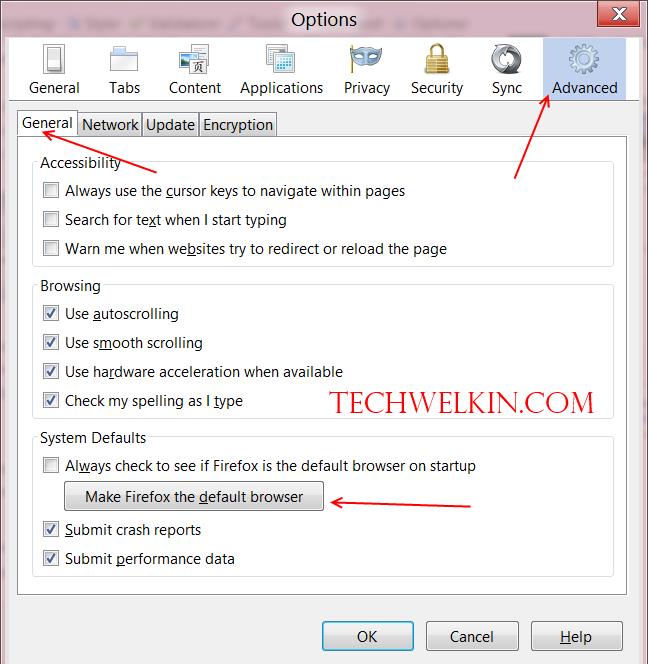
Firefox screen showing how to set default browser
Google has developed Chrome on the same platform as Firefox. If you decide to make Google Chrome your default browser –just open Google Chrome and click on the Menu button given in the top right corner (this button shows three lines stacked on top of each other). From the resulting menu –click on the Settings. Scroll down to the bottom of the settings page and you’ll see “Make Google Chrome my default browser” button. Click the button to set Google Chrome as default browser.
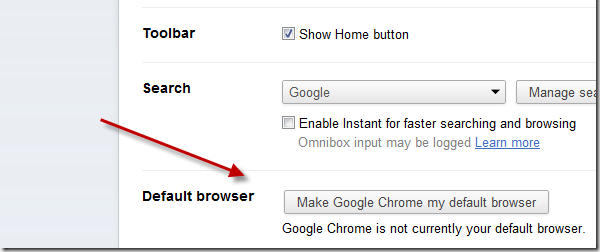
Google Chrome screen showing how to set default browser
Open Internet Explorer and go to the wheel icon given in top right corner. Select “Internet options” from the menu. A box will appear; go to “Programs” tab -> click on “Set programs” button -> a window will open -> click on “Set you default programs” link -> Select Internet Explorer from the list and click OK
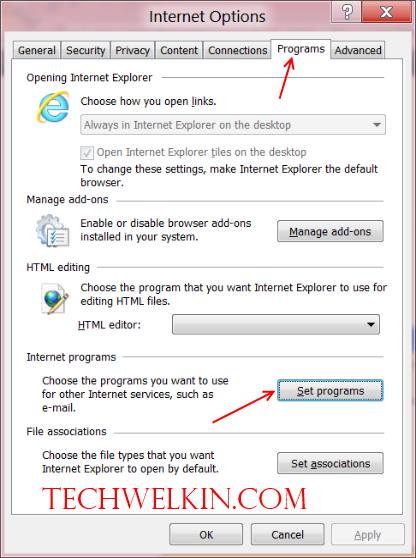
Internet Explorer screen showing how to set default browser
Open Opera browser and go to Tools menu. Then select Preferences (or you can press CTRL + F12 key combination). A box will materialize. Go to Advanced tab and then to Programs option. Tick the “Check if Opera is default browser on startup” checkbox. Click OK.
Restart Opera and now it will ask if you want to set Opera as your default browser. Select Yes to confirm your desire.
I hope this information will allow you to quickly figure out how to set a default browser. If you love, let’s say, Google Chrome but your default browser continues to be Internet Explorer -it’s time to change it!
Leave a Reply